HPC OnDemand User Guide

HPC OnDemand is a web-based portal into the UNC Charlotte Research Computing Cluster. HPC OnDemand provides an integrated, single point of access to your campus HPC resources. Once authenticated in the portal, you can launch SSH sessions into the interactive/submit hosts, if you prefer to continue to work at the command line. HPC OnDemand also gives you the ability to run interactive GUI applications on a compute node, directly in a web browser tab. Start computing immediately. A simple interface makes HPC OnDemand easy to learn and use. This includes:
- Easy file management
- Slurm job management and monitoring
- Launch Desktop applications such as RStudio, MATLAB, and Jupyter Lab/Notebook
- Work in a Graphical Linux Desktop
- Additionally, you can use the command-line by launching an SSH session onto one of our submit hosts
HPC OnDemand is based on an open-source web portal called Open OnDemand, developed by researchers at the Ohio Supercomputer Center and supported by contributors around the world. Want to learn more about the Open OnDemand Project?
- Visit their website: https://www.openondemand.org/
- Find them on GitHub: https://github.com/OSC/ondemand
- See this research talk from May 2024: https://www.youtube.com/watch?v=hMkdkxroGoA
Connecting to HPC OnDemand
If you haven’t gotten a Research Computing account yet, please visit our “Get Started” page for more information.
Access to the HPC OnDemand server follows the same rules as accessing our interactive/submit hosts. In order to access the HPC OnDemand server:
- If you are OFF campus: You must first connect to the campus VPN
- If you are ON campus: You must be connected to the eduroam WiFi, or be directly connected to the campus network via ethernet
Once you’ve established your account and have the proper network connectivity, navigate to:
Enter your Ninernet username and password, and go through the DUO 2FA prompts. If successful, you should now be at the HPC OnDemand Dashboard:
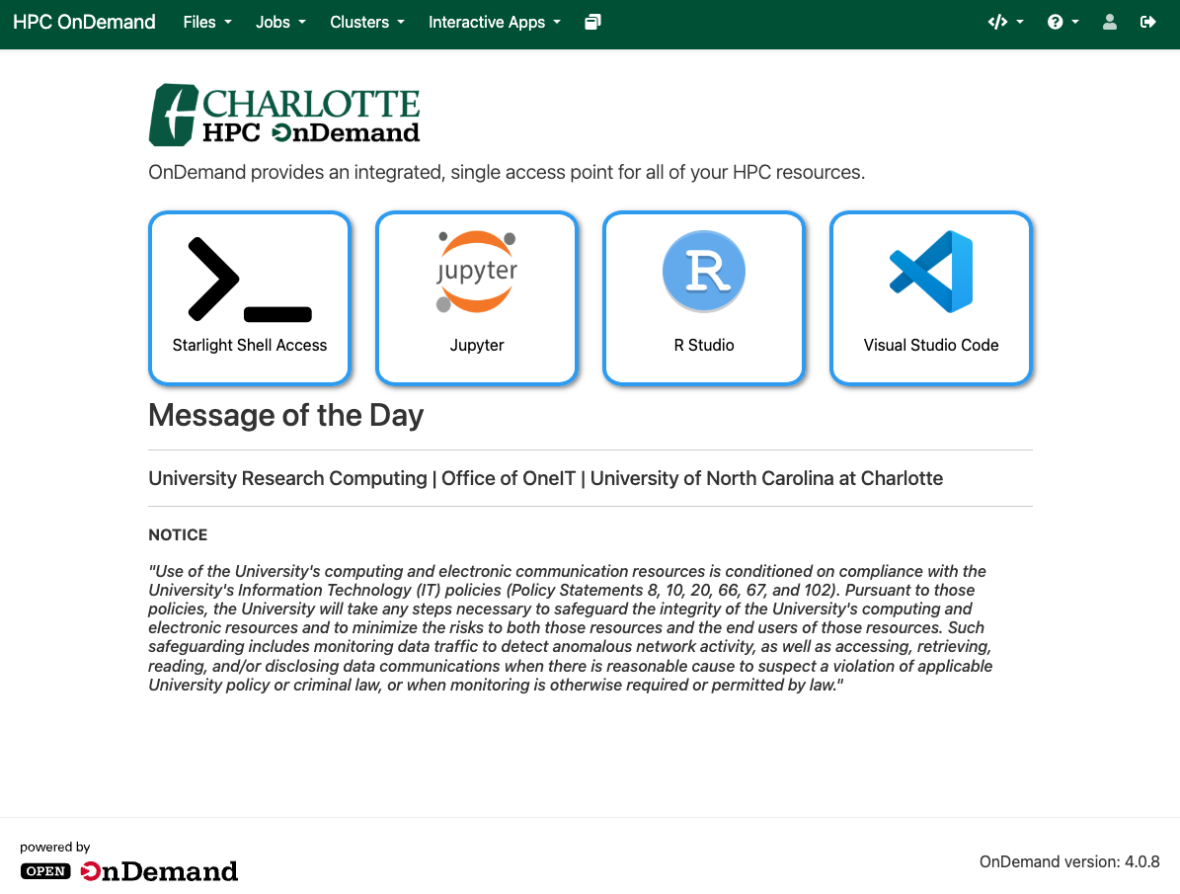
Navigating around the HPC OnDemand Portal
As you can see from the dashboard above, you are greeted with the Message of the Day, along with several shortcuts to popular applications:
- Starlight Shell Access: An SSH session onto one of our login nodes / submit hosts
- Jupyter: Launch a Jupyter Lab job onto the cluster
- R Studio: Launch an R Studio job onto the cluster
- Visual Studio Code: Launch a VSCode job onto the cluster
There is also a menu across the top of the Dashboard, for quick access to:
- Files: Shortcuts to your home and scratch directories, as well as links to /projects and /vast/temp
- Jobs: View the “Active Jobs” on the cluster, as well as access the “Job Composer”
- Clusters: Another shortcut to shell access, as well as links to get overall system status, or specific partition status
- Interactive Apps: A list of available GUI applications that you can launch on the cluster. (*the list of applications varies on user permissions)
File Management
Quickly access and manage your files and directories. Under the “Files” menu, you have 2 menu shortcuts directly to your 2 personal directories: Home and Scratch. There are 2 additional menu shortcuts to the root of Projects and the root of VAST Temp. From there, you should be able to navigate to any of the Project or VAST Temp volumes that you have been granted access to. The file management interface looks like your typical web-based file manager, with options to upload or download files, create new files or directories, copy/move/delete existing files, and even open a terminal for quick and convenient command line access:
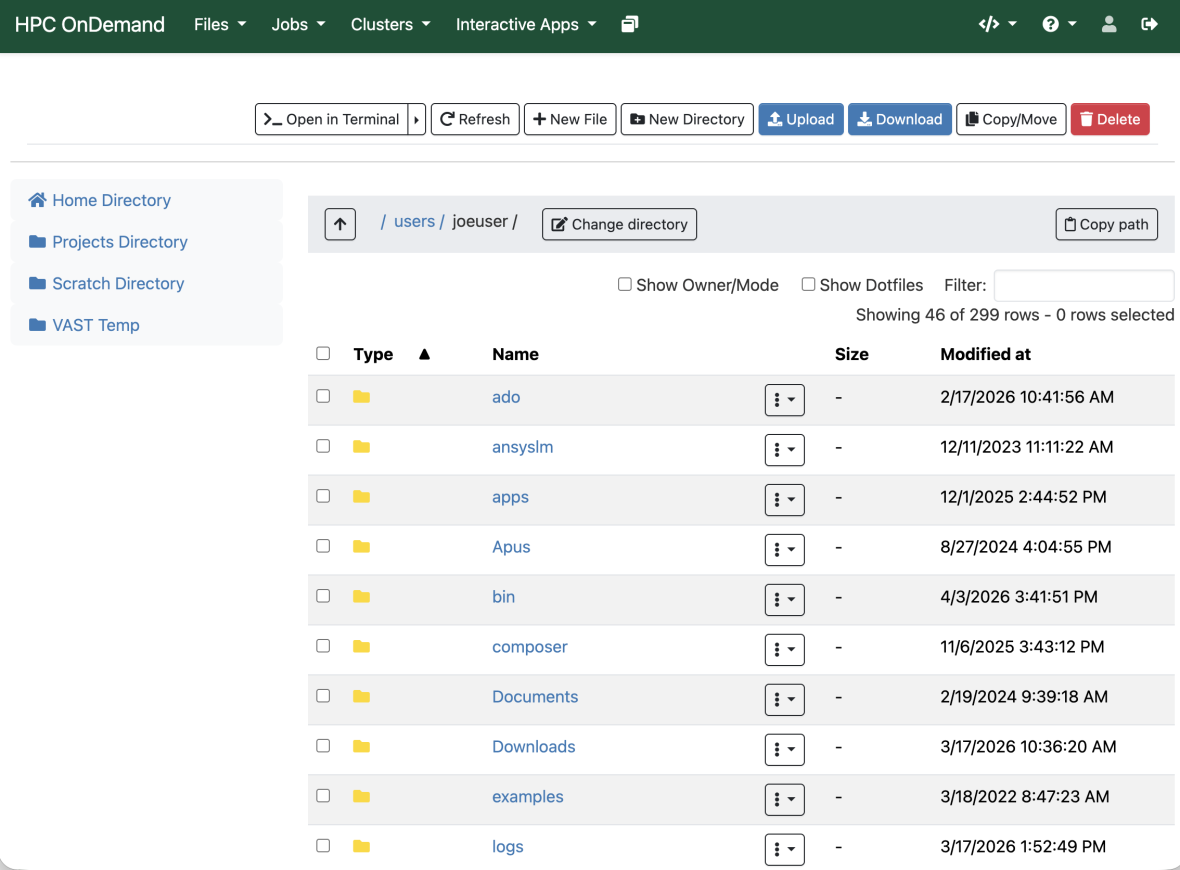
While using the HPC OnDemand Portal is quick and convenient for file management, it is best suited for smaller uploads and downloads (i.e., less than 2GB in size). For the best experience, please keep the following things in mind:
- Downloading files: When downloading files from your cluster storage, the portal interface will be inaccessible for the duration of your download. So for very large downloads, I would encourage you to still use one of the other data transfer methods: FileZilla, WinSCP, rsync, Globus, etc.
- Uploading files: When uploading files, the browser tab that you are doing the upload in must be left untouched, or else your upload may be interrupted. However, you can continue to work in the portal while an upload is occurring, so long as you do so in another browser tab. I recommend that you open another browser tab to the OnDemand Dashboard prior to starting your upload, then switching back to it to continue working after you’ve initiated the upload.
Monitoring System, Partition, and Job Statuses
HPC OnDemand gives you several ways to check the status of the cluster. Here are a few of those ways:
- Job Status: ( Menu – Jobs -> Active Jobs )
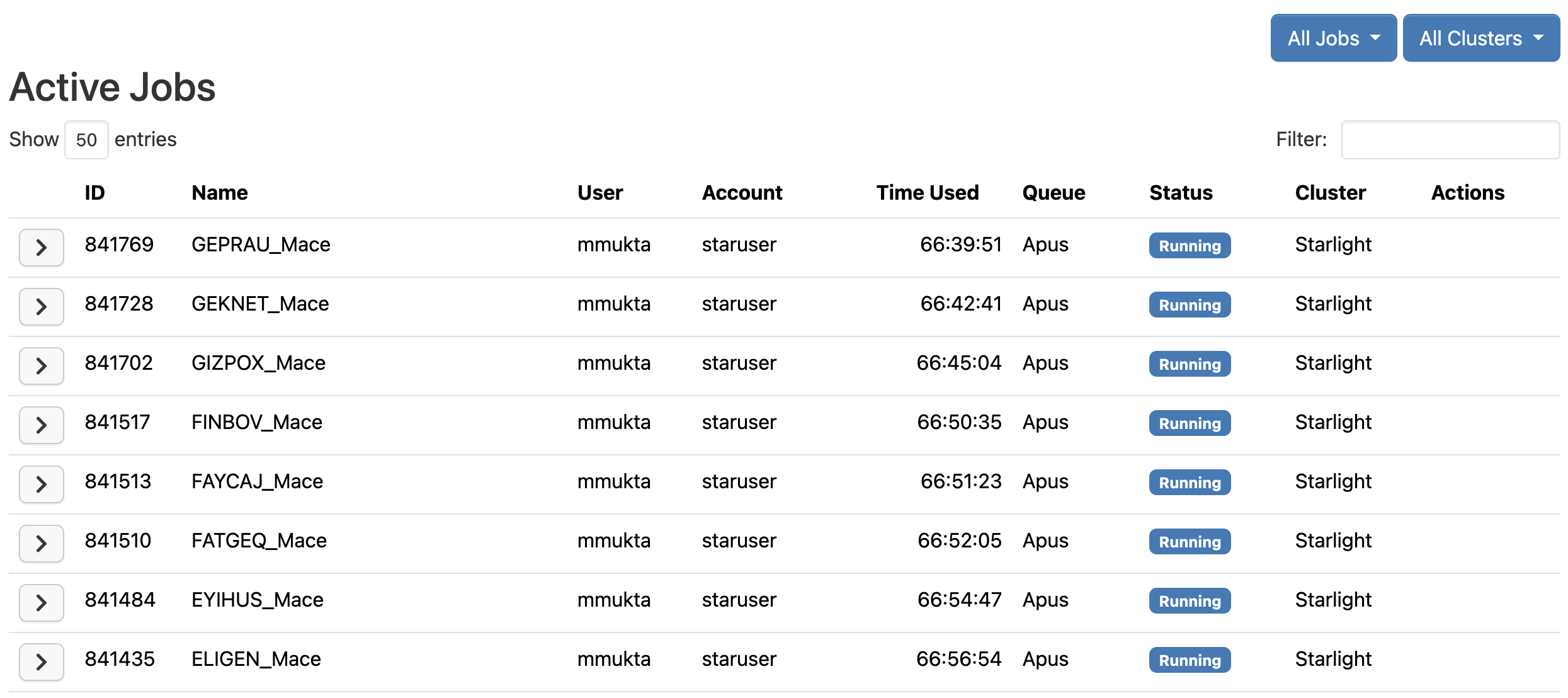
This gives you a listing of not only “active” jobs, but all jobs on the cluster (active, pending, recently completed, etc). It is like a graphical version of “squeue”. You can choose between “Your Jobs” and “All Jobs” by changing the pulldown in the upper right-hand corner. Underneath that you can use the filter field to narrow down the job listings. Useful filters, for example, are: queue (partition) name, job status, job name, etc. - Cluster Status: ( Menu – Clusters -> System Status )
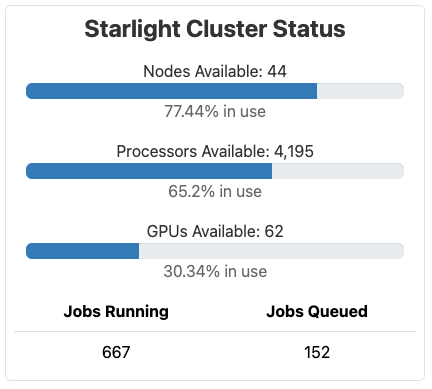
To see an overall status of cluster resources, choose this option. This gives you information like the availability of nodes, processors, and GPUs, and also shows how many jobs are running and queued. Please keep in mind that these numbers include ALL resources on the cluster, including compute nodes in partitions that you might not have access to. - Partition Status: ( Menu – Clusters -> Partition Status )
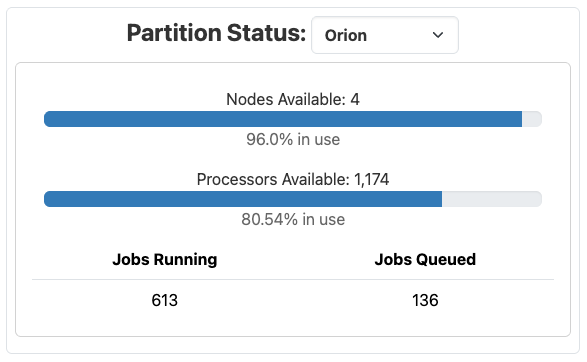
If you are only interested in seeing the status of a specific partition, choose this option. You will only be presented with a drop-down list of partitions that you have permissions to submit to; choose one that you are interested in. If you choose a GPU partition, it will also give you GPUs available.
Job Composer
The Job Composer is helpful tool for new users to learn about batch scheduling compute jobs on an HPC cluster. You can find the Job Composer in the “Jobs” menu; it will launch in a new browser tab when chosen.
You can quickly access the growing list of example job templates we have by choosing the “Templates” menu at the top of the page. Select one of the templates you would like to submit to the cluster, then click the “Create New Job” button on the right-hand side of the page: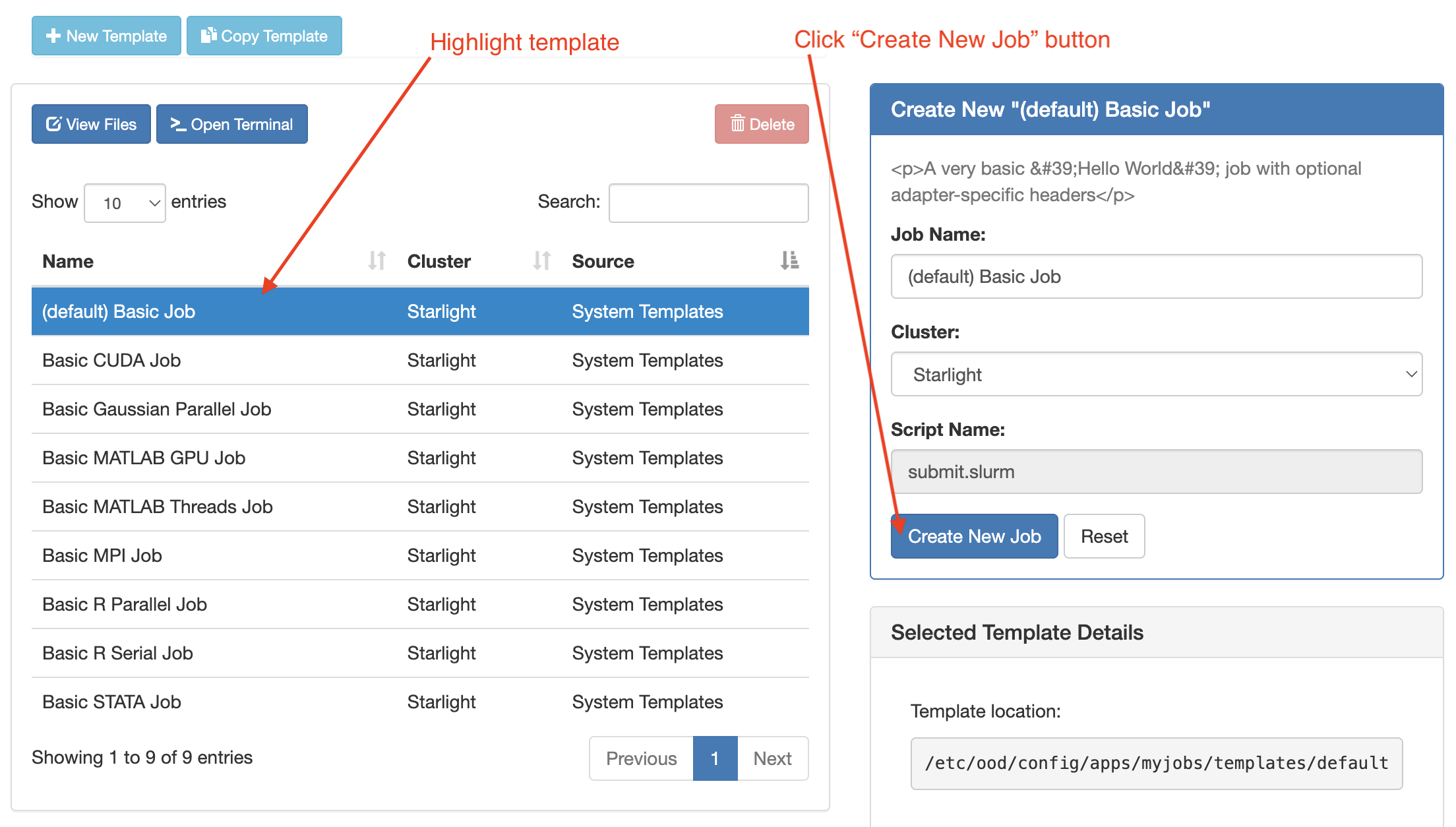
Whichever template you chose will now show up in your list of available jobs that you can submit to the cluster. You can scroll down and look at the contents of the submit script, and you can even edit it by clicking the “Open Editor” button at the bottom of the page (the editor will open in a new browser tab). If you made changes, make sure you save them and close the editor browser tab to return to your job list. When you’re satisfied with your job, make sure the job you want to submit is highlighted in your list of jobs, then click the green submit button: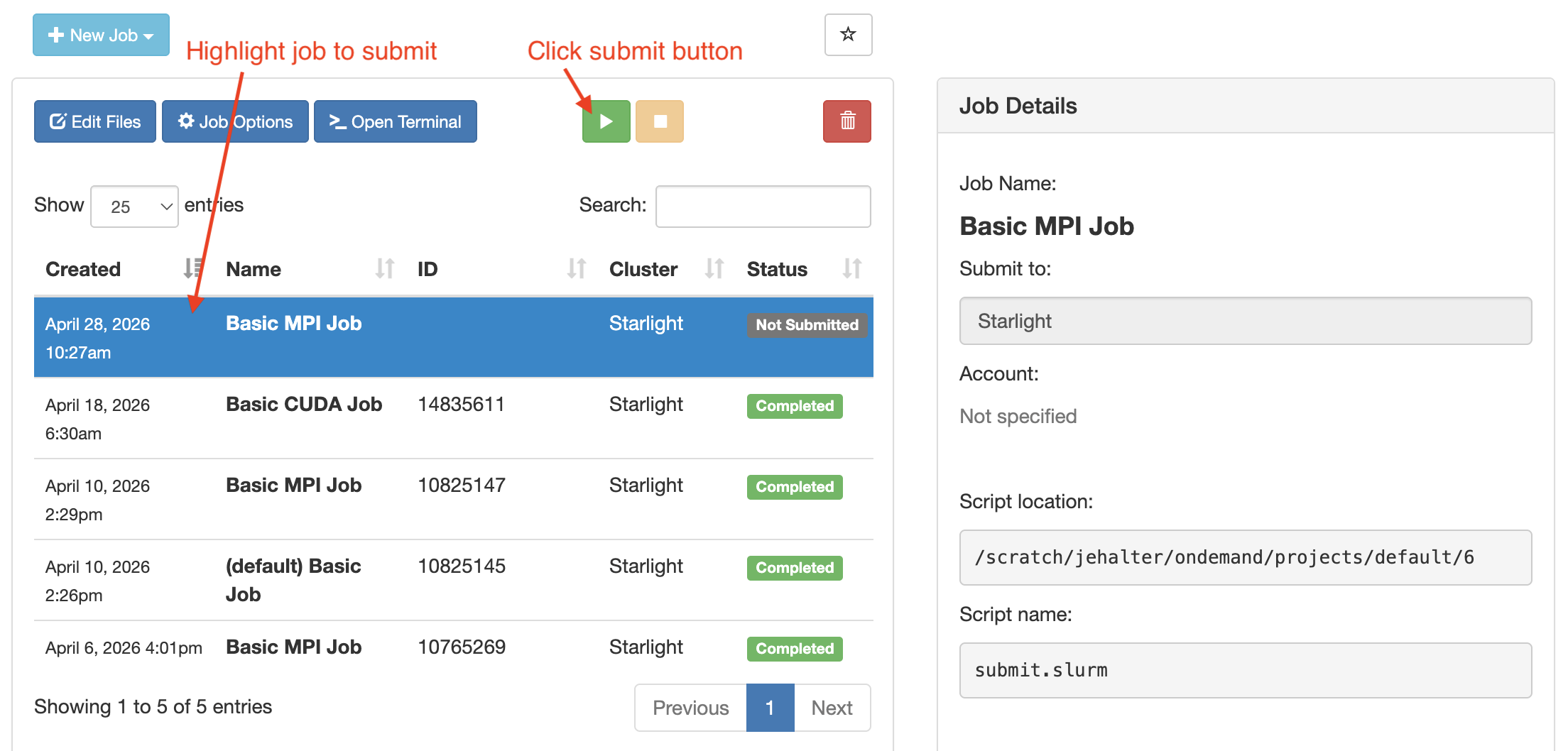
Your job should be queued and will eventually run! If you chose one of our templates, the jobs run very fast once they get scheduled. You may have to refresh the browser tab to see the latest status of the job. Once it is marked as “Completed”, you can look at the results (scroll down and look at the right-hand column for “Folder Contents” in the “Job Details” box.
Interactive Apps
HPC OnDemand gives you the ability to run interactive GUI applications on a compute node, directly in a web browser tab. We have a handful of available applications to choose from in the “Interactive Apps” menu, including:
- COMSOL
- Jupyter Lab/Notebook
- MATLAB
- Mathematica
- R Studio
- SAS
- Spyder
- Star-CCM+
- Stata
- VisIt
- Visual Studio Code
- Xfce Desktop
Once you choose one of the interactive applications from the menu, you will be able to adjust some parameters for this interactive job. For example, if you choose MATLAB, here is a screenshot of what is available to change:
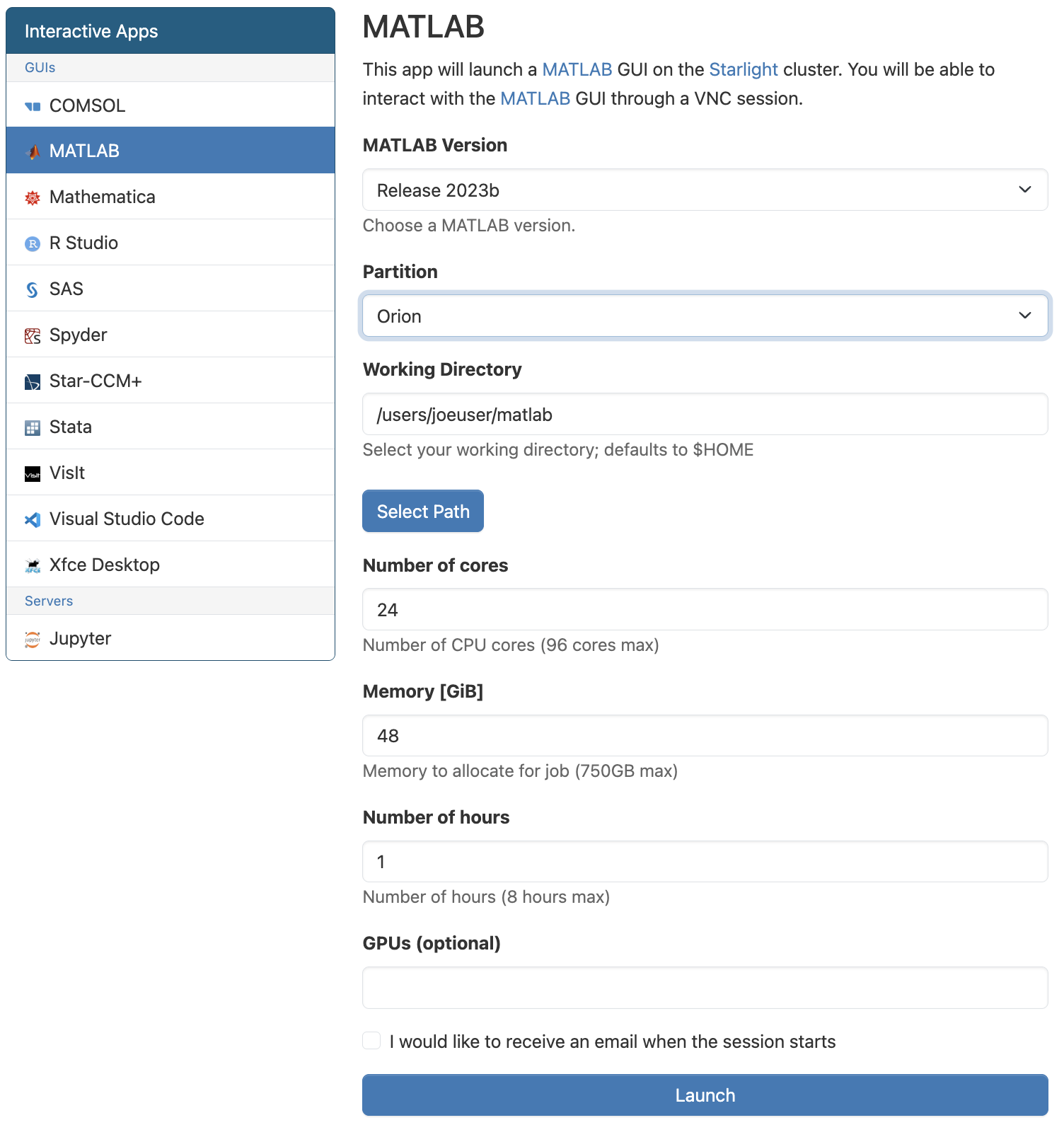
Here are the options with some details and/or explanation:
- MATLAB Version: Select which distribution of MATLAB you would like to launch
- Partition: Select the partition you would like to run your MATLAB instance in
- Working Directory: Select the directory you would like to work in (defaults to your home directory)
- Number of cores: Enter the number of CPU cores you would like (up to 96 cores)
- Memory: Enter the amount of RAM you would like (up to 750GB)
- Number of hours: Enter the number of hours for this interactive session (up to 8 hours max)
- GPUs: Only valid if a GPU partition has been chosen (up to 2 GPUs max)
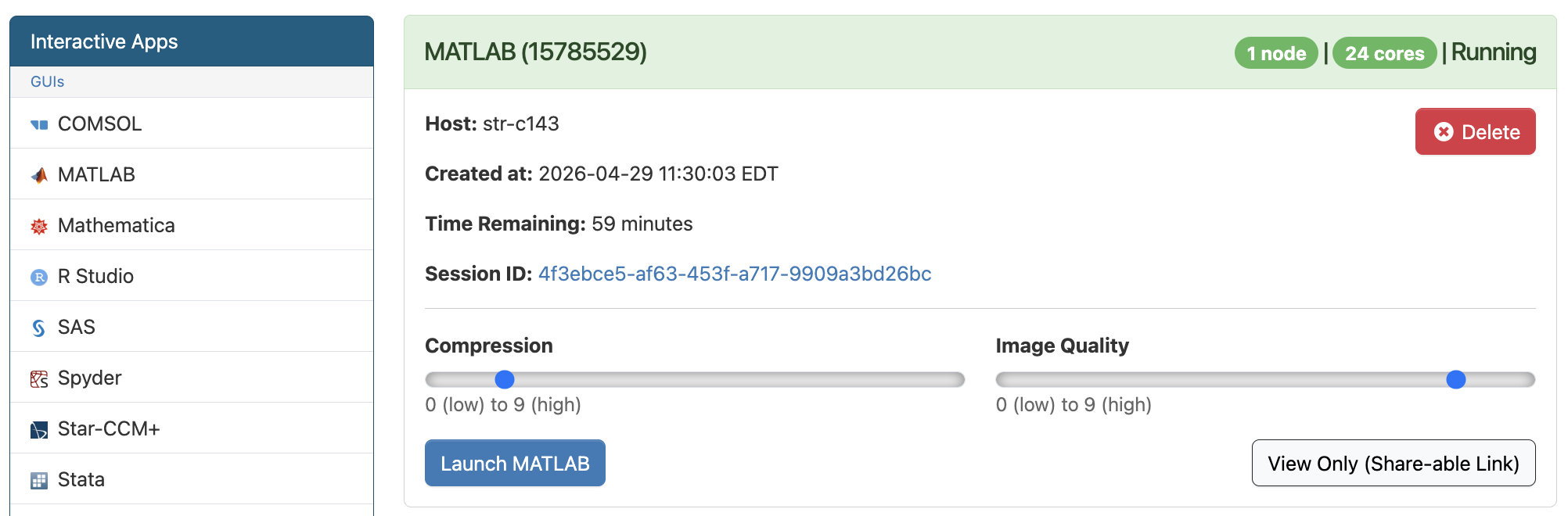
Once you’re satisfied with the parameters for your interactive job, click the “Launch” button! You will be presented with the following screen. In the upper right-hand corner of the screenshot below, the status is “Running”. Prior to “Running”, the job’s status may stay “Queued” for quite some time, depending on how busy the cluster is. Once the job is allocated resources, it will briefly change from “Queued” to “Starting”, while the job is being initialized on the compute node. Then it should eventually change to “Running”, when it is ready for you to use; the “Launch MATLAB” button will also be available. You can Adjust your Compression and/or Image Quality, then click “Launch MATLAB”:
There are a couple of things to keep in mind when working within an “Interactive Application” on the HPC Cluster:
- While you can change the number of CPU cores and Memory, the Interactive Applications in HPC OnDemand are limited to just 1 compute node.
- 8 hours is the maximum time allowed for an Interactive Application session.
For jobs that require >1 compute node or >8 hours of time, please submit them as batch jobs to the Slurm scheduler.