Google Gems Are Transitioning to Skills in Gemini
Google is upgrading how users customize AI in the Gemini app. Custom Gems are officially transitioning into Skills. You may begin to see this change as early as Tuesday, October 13 as it slowly rolls out. This update gives you greater flexibility, including the ability to combine multiple custom prompts in a single chat using a quick command.
OneIT will be revising documentation and training over the next few months to align with this change.
What’s New
- Use skills in any chat: Bring specialized guidance into any conversation without switching contexts. Simply type “/” in any active chat to pull up a skill.
- Get context-aware support: Let Gemini anticipate your needs. Skills can activate automatically based on the context and intent of your prompt to streamline daily administrative and instructional workflows.
- Use multiple skills at once: Tackle complex tasks by using multiple skills in one chat. For example, you can create a /citation-checker skill alongside a /journal-style-guide skill to review research drafts in one pass.
Timeline for Google Workspace for Education Users
- 10/13/2026
- Skills roll out in the Gemini app for education users. They can continue to create and use Gems.
- 11/17/2026
- The Gems entrypoint moves to the settings menu for education users. They can continue to create and use Gems.
- 6/1/2027
- Gems auto-migrate to skills for education users.
- Gems are no longer available in the Gemini app, and Gemini LTI™
Using Gemini Skills
Sometime after Tuesday, October 13, these options will appear in your Google workspace for education account.
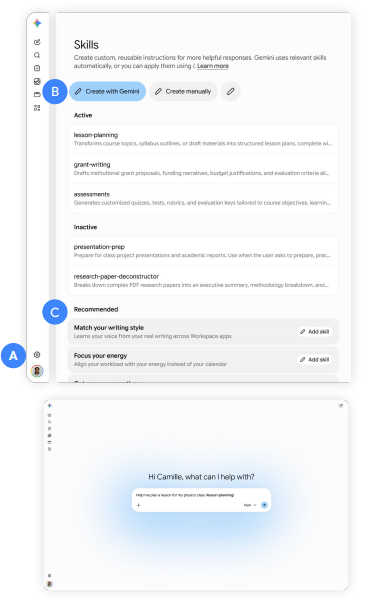
A. Navigate to the skills page: You can easily access skills in the settings menu at the bottom of the left sidebar. Think of the skills manager page as your control center, where you can see your skills all in one place and easily edit them or create new ones.
B. Create custom skills to meet your unique needs: You can create a skill with help from Gemini, build one from a prefilled or blank template, or upload a skill.md file on the skills page. You can also start one from any chat.
C. Access recommended skills: Gemini comes with premade recommended skills to help you get started right away. For example, the /match-your-writing-style skill learns your voice from your real writing across Google Workspace apps.
D. Trigger skills in any chat: Ask Gemini to use a skill by entering “/” directly inside any active chat window before selecting a skill from the drop-down menu. Gemini can also automatically use skills that are enabled based on the context and intent of your task.
Comparing Gems and skills in Gemini
| ITEm | Gems | Skills |
|---|---|---|
| Create a new Gem or skill | Only from the Gems manager page | From any chat or the skills manager page |
| Use a Gem or skill | Only from the Gems manager page | Type / in any chat |
| Create and edit on mobile | No | Yes |
| Craft instructions | Write manually or use Gemini to rewrite instructions | Write manually or co-create with help from Gemini |
| Use multiple at once | No | Yes |
| Attach files as knowledge sources | Yes | Yes |
| Use automatically, based on the context and intent of your task | No | Yes |
| Make a copy | Yes | NoDownload, reupload, and customize as a new skill |
| Share via Google Drive | Yes | Yes |
Reference Links
- View the Google Guide with detailed transition information.
- Read the 9/30/26 Google Blog Post for release information.
Note: While UNC Charlotte does not use Google Classroom, all Guided Learning features and Skills remain fully accessible inside the Gemini app.
For additional questions, reach out to the OneIT Service Desk.