AI Helpful Tips: Ask Chrome

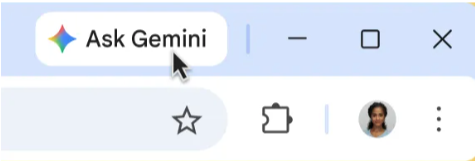
Have you noticed the “Ask Gemini” tab in Google Chrome browser? The tab can be connected to your @charlotte.edu account to get data protection and provides an AI-assistant alongside your open web pages, providing a more integrated experience. For example, Ask Gemini in Chrome can provide:
Instant Page Summaries
Working through a long article, dense report, or a lengthy web page? Open the side panel and ask Gemini to instantly generate a bulleted list of the key takeaways.
On-the-Fly Q&A
You can ask specific questions about the website you are currently viewing, such as “What are the deadlines listed on this page?” or “Summarize the main argument of this article.”
Drafting and Writing Support
Need to quickly reply to a message or draft a post? Use the side panel to brainstorm ideas, check your grammar, or rewrite text to sound more formal or casual.
Since this is a browser-level tool, it doesn’t deeply integrate with Gmail, GCal or Google Drive. However, it can still act as a highly efficient assistant alongside them while you work. For Gmail, it can help with quick reply brainstorming, for GCal it can help draft agendas and for Google Drive it can summarize documents.
To give it a try, look for the “Ask Gemini” or the Gemini icon next to your profile picture in the top right of Chrome.
Method 1: Use the Built-in Gemini Side Panel
Google Chrome includes a dedicated Gemini in Chrome side panel that lets you chat with AI, ask questions about your open tabs, and use features like Auto Browse.
- Locate the Button: Look at the top right of your Chrome browser toolbar (near your extensions and profile icon). You should see a Gemini in Chrome icon.
- Opt In: Click the Gemini icon. If it’s your first time opening it, follow the on-screen prompts to opt in and link it with your Google Account.
- Pin/Unpin: If you want it always visible, you can right-click the top toolbar and select Pin Gemini.
Note: If you don’t see the option, make sure your Chrome browser is updated to the latest version. You can check this by going to More (three dots) > Settings > AI innovations > Gemini in Chrome to toggle it on.
Method 2: The Address Bar (Omnibox) Shortcut
If you just want to quickly send a prompt to Gemini without opening a sidebar, you can do it directly from the location where you type website URLs.
- Click into the Chrome address bar at the top of your screen.
- Type @gemini (or type @ and select Chat with Gemini from the drop-down menu).
- Press Tab or Space. The address bar will transform into a dedicated Gemini prompt box.
- Type your question or command and press Enter. Chrome will immediately take you to the Gemini web app with your answer already generating.
Need Assistance? For more information, visit this Chrome page or contact the OneIT Service Desk with any questions. We are here to help you use AI tools effectively and safely!